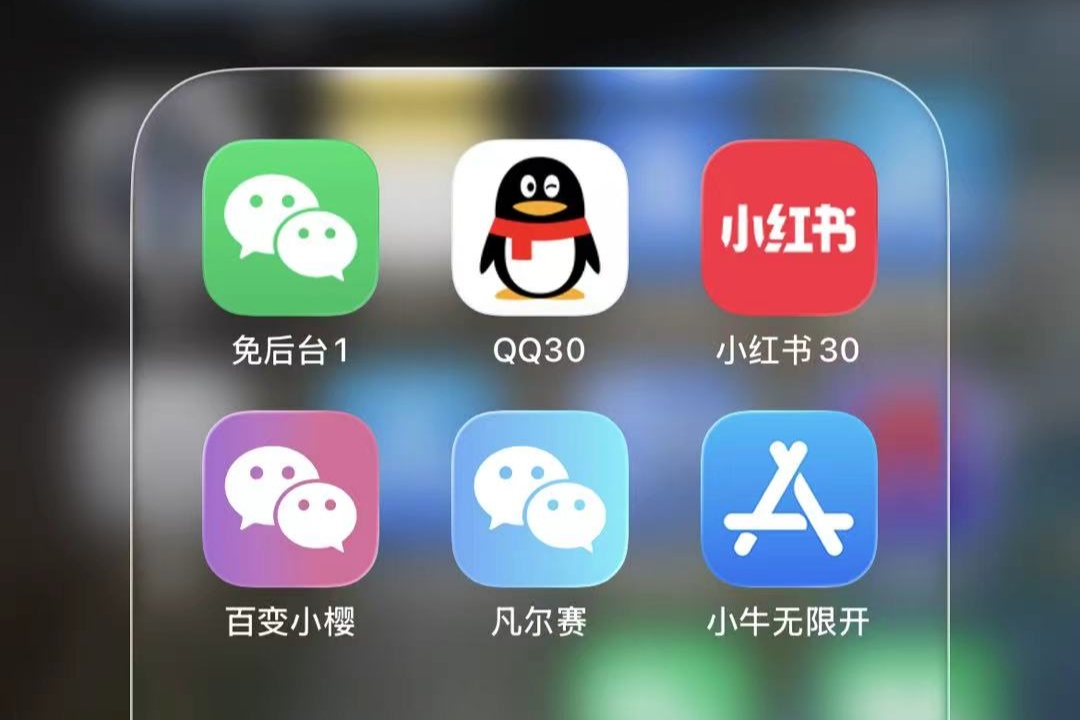
As strange as it may sound, I’ve never attempted to tweak my iPhone. Last week, a friend casually told me that she had just installed a 定制V — dìngzhì V, a modified WeChat client on her iPhone.
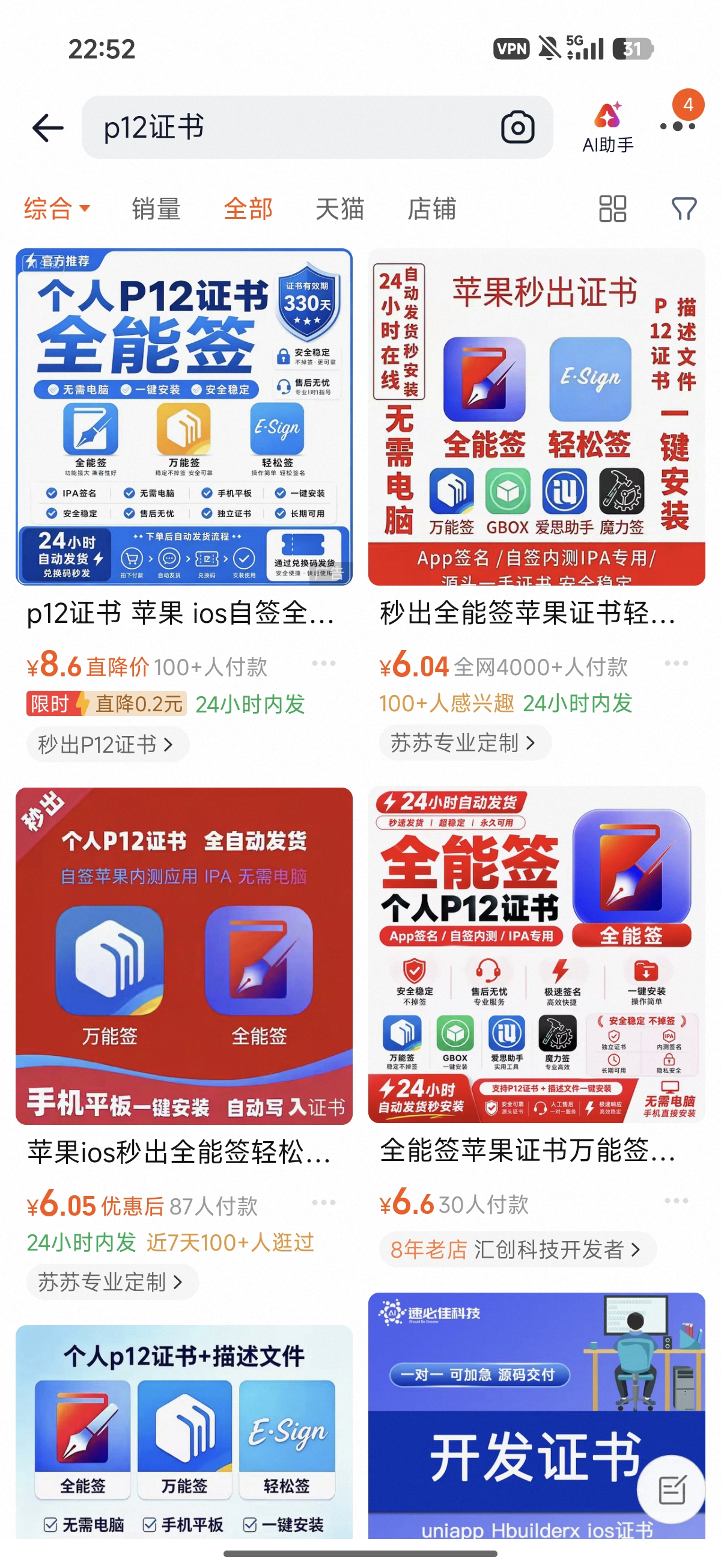
I couldn’t believe what I was hearing. She had bought a DIY guide and all the necessary cryptographic material from Taobao… for 15 RMB ($2.2 USD) a year!
After a week of investigating, it turns out renting Apple Developer account capacity to sideload your own apps is a lucrative business in China, where third-party tweaks for everyday apps are particularly popular among Gen Z users.
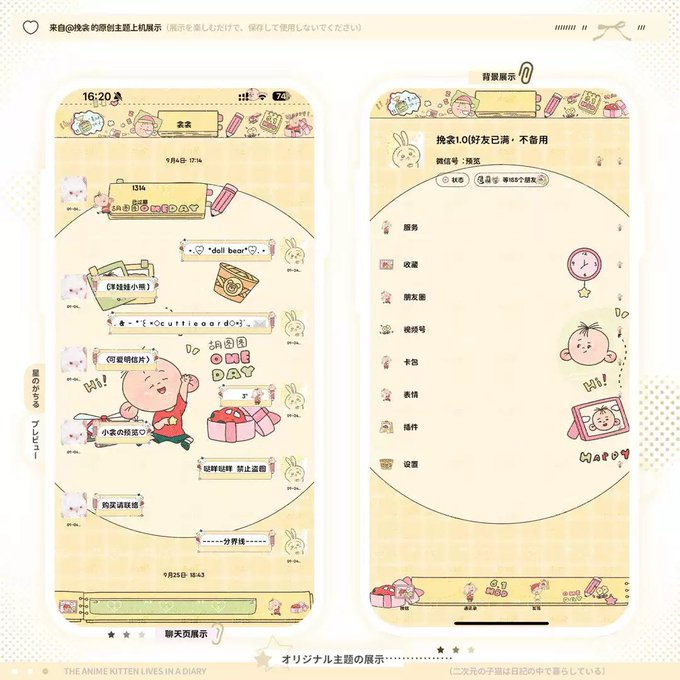
On Android, the process is relatively straightforward. On iOS, however, there’s a fascinating piece of infrastructure that has been automated and monetized, allowing large numbers of users (most of them non-technical!) to sideload apps that would otherwise never make it through the App Store.
This is the result of a week of deep investigation: certificate reading, app file unpacking and burning through translation apps’ rate limits across the Chinese Internet. Today, I’m bringing you along as I figure out how everything works, using my friend’s real setup as a case study.
What’s in the package?
Upon buying, the seller will automatically DM you on Taobao with a
link to instructions
and a secret key (typically referred to as 卡密 — ka mi), such as
SSBZ57CAE9E4A6C7 (actual key extracted from a video tutorial, not valid
anymore).
While the instructions also cover the PC workflow, I’ll focus exclusively on iOS, since that’s where things get interesting. Android sideloading is comparatively straightforward, so there is much less of a need for this kind of signing infrastructure.
The flow described in the document can be summarised as:
- Visit a vendor-controlled website and submit your UDID (your Apple Unique Device ID) together with the 卡密.
- The backend registers the device and generates a signed
.ipa(iOS App Package) containing a self-signing app, typically 全能签 — quán néng qiān. - Install the self-signing app on your iPhone.
- Use the self-signing app to sign a modified WeChat IPA (or, in principle, another IPA of your choice).
- Install the newly signed app on the iPhone.
Notice what’s not being sold here: the modified WeChat IPA itself. The Taobao product is essentially a package of signing credentials and infrastructure that gets a signing tool onto your device. The application you ultimately want to install can come from somewhere else (though the seller may attach the modded WeChat IPA to the doc, as is the case with my friend’s guide).
At every stage of the process, iOS applies a different part of its code-signing and application-distribution machinery. None of this requires a jailbreak or an exploit: the vendors are essentially automating Apple’s own signing and provisioning mechanisms, then packaging the resulting workflow into something that can be purchased for a few yuan.
The result is a remarkably frictionless experience: from the user’s perspective, it is basically buy → enter UDID → install 全能签 → sign IPA → install.
Apple Sideloading 101
In order to understand the flow internals, you first need to understand how sideloading works on Apple platforms.
Sideloading means installing an app through a distribution mechanism other
than the normal App Store flow. At a high level, it means obtaining an
application package (an .apk on Android or an .ipa on iOS) and getting the
operating system to install and execute it.
Code signing allows the operating system to verify that the app it’s about to run has not been modified since it was signed, and that it was signed using a signing identity recognized by Apple. This applies to any app you’d want to upload to an app store, but particularly in iOS, code signing is enforced as well before running any app, regardless of its distribution channel.
So what makes an iOS app’s signature “valid”?
We’re going to skip all possible iOS app distribution methods and get straight to the one these vendors use: Ad Hoc distribution
For now, all you need to know is that we need three basic ingredients to make Ad Hoc sideloading happen:
- An Apple-issued distribution certificate (
.cer) containing the public key associated with the developer’s signing identity. - The corresponding private key, which is used to cryptographically sign the
application after it has been built. The certificate and the private key are
commonly packaged together in a password-protected
.p12file. - An Apple provisioning profile (
.mobileprovision). Think of it as a whitelist that contains the device UDIDs authorized to run a certain app, along with Entitlements that define which privileged capabilities and configuration the signed app is authorized to use.
For the rest of this article, I’m going to refer to these three elements as signing credentials.
The important distinction is that the private key performs the cryptographic signing, while the certificate establishes the signing identity associated with that signature.
The provisioning profile defines the distribution authorization and Entitlements that the signed application is allowed to use.
I’ll go into more depth about the Ad Hoc provisioning model and the contents of each file later in the article. But so far, you’ve got everything you need to continue.
Installing the self-signing app (全能签)
l Now that you know what it takes to sideload an app, you might be seeing a chicken-and-egg problem ahead: if we need a self-signing app to sideload apps, who signs the self-signing app so you can run it on your iPhone?
The answer is: the vendor has a backend that does it for you.
They register your UDID in their Apple Developer account, create an Ad Hoc provisioning profile containing your device, and use their signing identity to sign 全能签. Once 全能签 lands on your iPhone, the app can be used to sign and install other IPAs until the signing credentials or provisioning profile expire… or Apple revokes your certificate.
This chicken-and-egg problem lies at the gate of iOS sideloading: if you can’t get a signed self-signing app onto your device, there is no convenient way to use that app to sign anything else.
There are several ways around this:
- Sign your own self-signing app. There are several open-source implementations available, but you’ll still need your own Apple signing credentials and provisioning profile.
- Have someone else sign it for you. This is the route taken by the commercial services we’re looking at. Here you can see other services that do exactly the same thing:
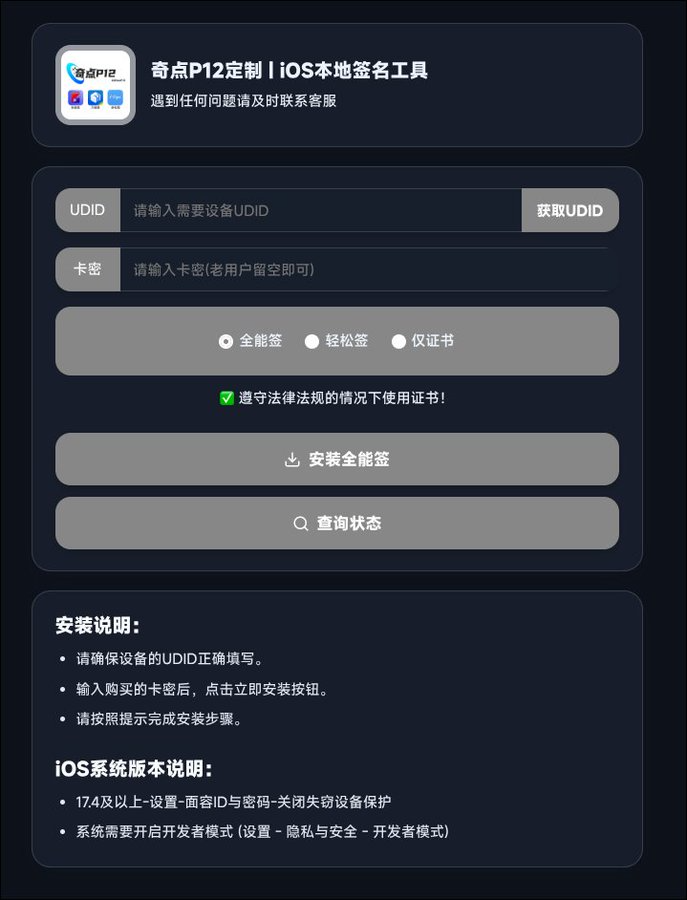
In all of these websites, there’s a form prompting for the UDID and the 卡密 (kǎmì, essentially a redemption/access code). Interestingly, there’s always a text box saying that existing users don’t need to enter the 卡密 again.
The exact purpose of the 卡密 is not exposed by the frontend, but its behavior strongly suggests that it acts as a purchase or authorization token: on the first registration, the service associates the user’s UDID with the purchased service, while subsequent visits can identify the existing registration without requiring the code again.
Only 全能签’s official website gives you the additional option of bringing your
own signing materials. You can provide a .p12 and its password together with a
.mobileprovision, allowing the service to sign 全能签 using your own signing
identity.
For our live experiment, we’ll use the website my friend’s vendor sent her: https://qdp12.letuip12.cn/
The website’s purpose, at a glance
If we look back at the ingredients required to sideload an app — in this case, the self-signing app — you’ll remember that we need both a signing identity and a provisioning profile.
The .p12 contains the certificate and corresponding private key used to create
the code signature. The .mobileprovision, on the other hand, tells iOS which
application identifier, entitlements, and devices are authorized by that
profile.
So, after receiving your UDID, the vendor can register your device in its Apple Developer account and generate an Ad Hoc provisioning profile containing that UDID. The vendor then uses the corresponding signing identity together with that provisioning profile to sign 全能签. In this case, the signing happens server-side.
Back to the website, the form on screen gives you several options:
- Download the signed 全能签 IPA file.
- Download the EasySign IPA file, a very similar self-signing app we won’t cover today.
- Download the certificates associated with the signing service.
- Check your subscription status.
From here, you have two paths.
If you’d like to explore how the vendor obtains your UDID automatically, go to
the “Obtaining the UDID with an Apple .mobileconfig file” subsection.
If you stay here, I’ll show you how the signing process works by opening the IPA
file and inspecting its embedded .mobileprovision. By comparing the
provisioning profile with the app’s bundle identifier and the device UDID, we
can verify exactly how this installation was authorized. Let’s go.
Inspecting 全能签’s signature
Clicking on 安装APP (install app) on the website redirects to a page with a download button, which points to:
That URL shows yet another cool piece of Apple tech: over-the-air (OTA) installs.
When a developer wants to distribute their app (modded or not), Xcode gives them
the option to “Include manifest for over-the-air installation”, if they’re
planning to use Ad Hoc as a means of distribution. This is done so testers don’t
have to ask for the IPA and install it themselves. Instead, the distribution is
served by the developer, and Apple signing ensures the app can only be installed
on authorized devices (= their UDIDs are in the .mobileprovision file).
For our vendor, this means users whose devices are registered (i.e. users who bought their services on Taobao) can have 全能签 installed right on their iPhones, in one click. Incredibly convenient.
Apple’s documentation is fairly obscure on this subject: OTA installs are detailedly documented in a section belonging to Apple Developer Enterprise Program, but the fact non-Enterprise Apple Developer Program members can also use it is implied in some forums and, officially, in minute 8:50 of WWDC19, session 304.
I don’t have my MacBook within reach right now, but if we decode the url
parameter of the itms-services link, we’ll be able to read it without using
Safari:
<!-- ############################################# -->
<!-- #   1788717174.plist (app manifest file)    # -->
<!-- ############################################# -->

<plist version="1.0">
	<dict>
		<key>items</key>
		<array>
			<dict>
				<key>assets</key>
				<array>
					<dict>
						<key>kind</key>
						<string>software-package</string>
						<key>url</key>
						<string>
						<![CDATA[ https://install.letuip12.cn/signed/<YOUR-UDID>_4SAS/<UNIX-EPOCH-MS>.ipa ]]>
						</string>
					</dict>
					<dict>
						<key>kind</key>
						<string>display-image</string>
						<key>needs-shine</key>
						<integer>0</integer>
						<key>url</key>
						<string>
						<![CDATA[ https://install.letuip12.cn/upload_file/2026-05-29/div9e3lt7vih9rl3jy.png ]]>
						</string>
					</dict>
					<dict>
						<key>kind</key>
						<string>full-size-image</string>
						<key>needs-shine</key>
						<true/>
						<key>url</key>
						<string>
						<![CDATA[ https://install.letuip12.cn/upload_file/2026-05-29/div9e3lt7vih9rl3jy.png ]]>
						</string>
					</dict>
				</array>
				<key>metadata</key>
				<dict>
					<key>bundle-identifier</key>
					<string>signall.nuosike.sign</string>
					<key>bundle-version</key>
					<string>
					<![CDATA[ 27.0.9 ]]>
					</string>
					<key>kind</key>
					<string>software</string>
					<key>title</key>
					<string>
					<![CDATA[ 全能签_全功能 (1).ipa ]]>
					</string>
				</dict>
			</dict>
		</array>
	</dict>
</plist>
Gotcha! With this information, we can just GET the IPA file straight from the
server regardless of our OS. An IPA is essentially a renamed ZIP archive, so
let’s crack it open…
Another provisioning file?
Inside an iOS app bundle distributed this way, you’ll find an
embedded.mobileprovision file. Try diffing both this and the original
.mobileprovision the Taobao seller gives the buyer and you will find no
difference. They’re exactly the same.
<!-- ######################################################### -->
<!-- #  描述文件.mobileprovision / embedded.mobileprovision   # -->
<!-- ######################################################### -->

<!DOCTYPE plist PUBLIC "-//Apple//DTD PLIST 1.0//EN" "http://www.apple.com/DTDs/PropertyList-1.0.dtd">

<plist version="1.0">
	<dict>
		<key>AppIDName</key>
		<string>Moon9069Cancer2921 e4b375633df03d85d53c670880078144</string>
		<key>ApplicationIdentifierPrefix</key>
		<array>
			<string>U7W7BC53HF</string>
		</array>
		<key>CreationDate</key>
		<date>2026-09-02T09:49:06Z</date>
		<key>Platform</key>
		<array>
			<string>iOS</string>
			<string>xrOS</string>
			<string>visionOS</string>
		</array>
		<key>IsXcodeManaged</key>
		<false/>
		<key>DeveloperCertificates</key>
		<array>
			<data>MIIFtTCCBJ2gA...</data>
		</array>
		<key>DER-Encoded-Profile</key>
		<data>MIIWxgYJKoZIh...</data>
		<key>Entitlements</key>
		<dict>
			<key>com.apple.developer.system-extension.install</key>
			<true/>

			<!-- Compacted for readability -->

			<key>application-identifier</key>
			<string>U7W7BC53HF.app.moon9069.cancer2921</string>
			<key>keychain-access-groups</key>
			<array>
				<string>U7W7BC53HF.*</string>
				<string>com.apple.token</string>
			</array>
			<key>com.apple.developer.team-identifier</key>
			<string>U7W7BC53HF</string>
			<key>com.apple.developer.kernel.increased-debugging-memory-limit</key>
			<true/>
		</dict>
		<key>ExpirationDate</key>
		<date>2027-08-29T16:57:54Z</date>
		<key>Name</key>
		<string>YOUR_UDID</string>
		<key>ProvisionedDevices</key>
		<array>
			<string>YOUR_UDID</string>
		</array>
		<key>TeamIdentifier</key>
		<array>
			<string>U7W7BC53HF</string>
		</array>
		<key>TeamName</key>
		<string>Arnold Thomas</string>
		<key>TimeToLive</key>
		<integer>361</integer>
		<key>UUID</key>
		<string>114ada0f-9f29-4105-ac1e-dfef6233267e</string>
		<key>Version</key>
		<integer>1</integer>
	</dict>
</plist>
There is some interesting metadata here. But the concept I’d like you to stick
with is that the TeamIdentifier and certificate identity line up, and most
importantly, the certificate’s validity period lines up with the profile’s
ExpirationDate. Your UDID is there too.
I promised before that I’d prove this vendor is using Ad Hoc provisioning.
Apple’s documentation
explicitly states that devices are associated with Development and Ad Hoc
provisioning profiles, and that their UDIDs are listed under
ProvisionedDevices. Combined with the distribution certificate and the OTA
distribution workflow we just observed, this lets us identify the profile as Ad
Hoc rather than Enterprise.
We can dig a little deeper because, if you remember, the website to download 全能签 gave you the possibility of downloading the certificate it created for you. This is because you can reuse these signing credentials to sign your other IPAs in the future.
When you download the certificate, you will get:
证书文件.p12, containing your certificate and your private key.卡密.txt, which is the password to open the.p12container. This vendor chose to use1as the password. Nice.描述文件.mobileprovision
Opening the certificate will give the following information:
Private Keys Key #1: RSA — 2048 bits
Certificate #1 Subject:
undefined=U7W7BC53HF, CN=iPhone Distribution: Arnold Thomas (U7W7BC53HF), OU=U7W7BC53HF, O=Arnold Thomas, C=USIssuer:CN=Apple Worldwide Developer Relations Certification Authority, OU=G3, O=Apple Inc., C=USSerial:1fdc2d3320cc8e107d083a341568e443Not Before:Sat, 29 Aug 2026 16:57:55 GMTNot After:Sun, 29 Aug 2027 16:57:54 GMTSignature:sha256WithRSAEncryption
Compare this data with what’s inside .mobileprovision. This tells us that the
provisioning profile is tied to this Apple Developer identity and authorizes the
device we’re installing on. The certificate’s validity period also lines up with
the profile’s expiration date. The puzzle is complete!
Obtaining the UDID with an Apple .mobileconfig file
The UDID is your Apple device’s unique identifier. It’s not a secret, but it’s not particularly easy to retrieve either. This identifier is commonly used for app development: developers can register a device’s UDID in their Apple Developer account, effectively associating that physical device with their development and distribution workflows.
The average user will never know that such an ID exists, and, to be frank, they don’t need to. The problem is that if they ever want to retrieve their iPhone’s UDID, they’ll typically need to use a Mac or rely on an external service.
The most interesting part of the websites used to install 全能签 is that they
often have a button in their form to “obtain the UDID”. Clicking it downloads a
.mobileconfig file, a special configuration profile that triggers a prompt on
the iPhone’s Settings app. This type of profile can request device information
and send the collected data to the vendor’s backend.
Let’s open the file my friend got:
<!-- #################################### -->
<!-- #  qdp12.letuip12.cn.mobileconfig  # -->
<!-- #################################### -->


<?xml version="1.0" encoding="UTF-8"?>

<!DOCTYPE plist PUBLIC "-//Apple//DTD PLIST 1.0//EN" "http://www.apple.com/DTDs/PropertyList-1.0.dtd">

<plist version="1.0">
	<dict>
		<key>PayloadContent</key>
		<dict>
			<key>URL</key>
			<string>https://sign.drnrt8.cn/sign/UDID/sign-receive.php</string>
			<key>DeviceAttributes</key>
			<array>
				<string>UDID</string>
				<string>IMEI</string>
				<string>ICCID</string>
				<string>VERSION</string>
				<string>PRODUCT</string>
			</array>
		</dict>

		<key>PayloadOrganization</key>
		<string>UDID获取</string>

		<key>PayloadDisplayName</key>
		<string>全能签客户端</string>

		<key>PayloadVersion</key>
		<integer>1</integer>

		<key>PayloadUUID</key>
		<string>3C4DC7D2-E475-3375-489C-0BB8D456A653</string>

		<key>PayloadIdentifier</key>
		<string>全能签UDID获取</string>

		<key>PayloadDescription</key>
		<string>本描述文件仅用来获取设备UDID</string>

		<key>PayloadType</key>
		<string>Profile Service</string>
	</dict>
</plist>
What you’re seeing is PLIST (Property List) syntax. Apple extensively uses it to store app-related configuration and metadata. Think of it as a structured file containing key-value pairs, similar to a JSON file. Plists can be stored in either XML or Apple’s binary format.
Installing the profile causes the specified device attributes to be sent to a third-party endpoint controlled by the signing service. The UDID is technically sufficient for the service to identify and register the device for Ad Hoc distribution.
Why the service additionally requests IMEI, ICCID, iOS version, and product
information is unclear from the profile itself. Turns out, all .mobileconfig
files I’ve examined request the exact same information, but send it to different
endpoints. Interesting.
I don’t know about the purpose of gathering this extra data from the evidence
alone, but a quick look at Apple’s docs on
registering devices in bulk
shows that IMEI, ICCID and the rest of attributes .mobileconfig captures can
be saved along the UDID for device management purposes.
How does 全能签 actually sign your apps?
Hooray! We finally have 全能签 installed! From now on, the vendor’s job is done and we own the signing process.
The videos in the Feishu guide detail the next steps. At a glance, the process looks like:
- You import your certificate into the app. If you remember, there was an option in the website to download the certificate the vendor used to sign 全能签. This is what we’ll use as well to sign our own apps.
- You import an IPA of your choice into the app. In this case, WeChat. The vendor added the app to the guide, but you can visit any repository, such as iPA资源站, and download any mod of your choice (at your own risk).
- Install the app!
I don’t have access to 全能签 on my device, but I will walk you through the evidence I was able to gather from observing the app. This should give you sufficient insight into how self-signing apps typically work.
By definition, re-signing means replacing the existing code signature with a new one, so the app can be accepted by iOS.
When we modify an IPA file, let’s say from Tencent, we are free to modify its
contents (including its .mobileprovision), but any change to signed code or
other signed content will invalidate the existing signature. However, iOS won’t
accept installing or running that mod straight away without a valid code
signature, which can be either a new Tencent signature (which obviously won’t
happen)… or yours.
全能签 is a closed source app, so we don’t have much information about how the re-signing process occurs. However, we can infer how it works from the definition above and the app’s own output logs:
全能签 ·  V7.7.1
创建缓存文件夹 [Create cache folder]
复制文件 [Copy file]: YOUR_APP.app
读取证书信息 [Read certificate info]: Apple Distribution: Dongguan Huicheng Information Technology Co., Ltd. (WS5V8952WK)
修改版本限制为 [Modify version restriction to]: iOS 10.0
移除设备限制 [Remove device restrictions]
开启文件访问 [Enable file access]
开始签名 [Start signing]: YOUR_IPA_NAME.ipa
签名成功 [Signing successful]
开始打包 [Start packaging]: YOUR_IPA_NAME.ipa
打包成功 [Packaging successful]: YOUR_IPA_NAME.ipa
Fortunately, since code signing is a standard Apple mechanism, we can find open source automations on the Internet. Let’s take a look at this script from Daniel Torrecillas, an American developer:
$ ./resign-ios-app 'AnApp.ipa' 'XC_iOS_comcompanyAnApp.mobileprovision' 'iPhone Distribution: AnOrganization'

Unzipping "AnApp.ipa"...
Extracting .app...
Removing existing _CodeSignature...
Decoding "XC_iOS_comcompanyAnApp.mobileprovision" and writing to ProvisioningProfile.plist...
Extracting "Entitlements" from ProvisioningProfile.plist and writing to Entitlements.plist...
Embedding "XC_iOS_comcompanyAnApp.mobileprovision" into "AnApp.app"...
Resigning "AnApp.app" with existing bundle identifier "com.company.AnApp"
Resigning embedded Swift libraries...
./libswiftCoreImage.dylib: replacing existing signature
./libswiftObjectiveC.dylib: replacing existing signature
# COMPACTED FOR READABILITY...
Resigning embedded frameworks...
./BarcodeScanner.framework: replacing existing signature
./SQLite.framework: replacing existing signature
Resigning "AnApp.app" with certificate "iPhone Distribution: AnOrganization"...
Payload/AnApp.app: replacing existing signature
Zipping app data into an .ipa...
Resigning successful. Resigned app to /Users/daniel/resign-ios-app/resigned.ipa
At a glance, you can see they both modify the files within the IPA. The main difference is that 全能签 hides most of the intermediate work behind its cache. The steps involving file access and removing restrictions in 全能签 may correspond to some of the processing we can see explicitly in the script, such as unpacking the IPA and handling the provisioning profile, but we can’t know exactly what they do from the logs alone. Finally, both resign the embedded code and the app itself, but 全能签 keeps the output much simpler.
Final word: the sky is the limit
By this time, my friend has her modified WeChat client running on her iPhone. She’s been using it for a while now and are happy with it.
Perhaps she’ll be okay with installing just one app and forgetting about this long process, but chances are she’ll find herself in one of the following situations: how can the app be updated? What if she wants to just try a modded client but still keep the original, Tencent-signed package in case anything goes wrong?
Now that we’ve learnt the engineering behind the whole process, a new door opens: modding the mod.
We learned that we could re-sign essentially any IPA as long as we provide a valid signing identity and provisioning profile. And since we are the owners of the process, signing apps like 全能签 allow (and encourage) you to modify the mod’s bundle ID. The reason is simple and OS-agnostic: two apps with the same bundle ID can’t coexist as separate installations on the same device.
By changing the bundle ID, we could technically have com.tencent.xin, WeChat’s
original bundle ID; but also a modded WeChat client called com.tencent.wx, or
even com.tencent.wx.1. This gives the user multiple instances of the app on
the same device, potentially allowing multiple accounts. Or even the ability to
juggle between modded clients, each with a different set of in-app feature
flags.
Of course, and as you may expect, this goes directly against the T&Cs of many modern apps. Tech evolves fast, and tech companies race against the modding community, banning, patching and securing their apps, battling the desire of a whole generation to stand out and go above and beyond to express their individuality even on the smallest of UI details. Many people buy these certificates on Taobao without knowing the power they hold. You now do.